Installation Of Software In Ubuntu and Other Linux Operating Systems – Troubleshooting 1: LibreOffice
“Do not trouble trouble, unless trouble troubles you, because if you trouble trouble, trouble will surely trouble you” — Proverb, Tongue Twister
Hardware Acceleration in Linux: When to Turn It Off for Better Performance
The issue with applications or software crashing on your Linux system may stem from incompatibility or inefficiency when using hardware acceleration. Applications and software, often use GPU (graphics processing unit) acceleration to enhance performance, especially for tasks like rendering complex documents with images or videos. Over time, the software might overuse GPU resources beyond what your system can handle, leading to crashes due to either compatibility issues between graphics drivers and application/software’s hardware acceleration implementation or excessive resource usage and overheating. Turning Off ‘hardware acceleration’ feature in the application/software settings switches the process of rendering images or videos, back to CPU-based operations, which is more stable but less efficient for complex tasks.
Solutions (Quick Fix):
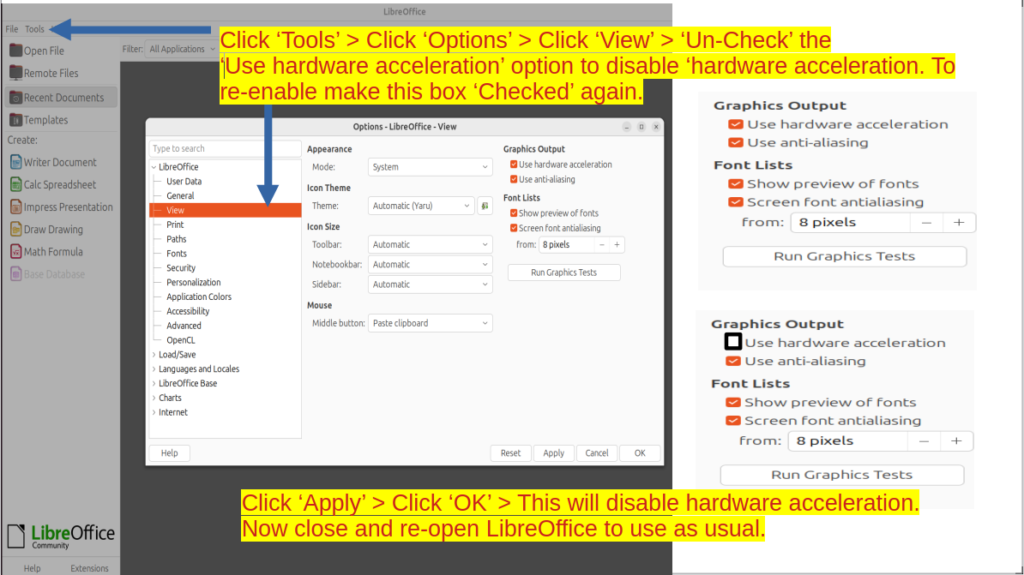
- If you’re experiencing crashes with LibreOffice after extended use on your Linux system, consider exploring whether disabling ‘hardware acceleration’ resolves the issue. Hardware acceleration may enhance performance but could also introduce instability if not properly supported by your graphics drivers or windowing systems. How to disable ‘hardware acceleration’? Open Libre Office > click ‘Tool’ > click ‘Options’ > click ‘View’ > uncheck the ‘Use hardware acceleration’ under ‘Graphics Output’ > Click ‘Apply’ and ‘OK’ to save the settings > close and reopen Libre Office, now it will run WITHOUT ‘hardware acceleration’.
To re-enable ‘hardware acceleration, Open Libre Office > click ‘Tool’ > click ‘Options’ > click ‘View’ > check the ‘Use hardware acceleration’ under ‘Graphics Output’ > Click ‘Apply’ and ‘OK’ to save the settings > close and reopen Libre Office, now it will run WITH ‘hardware acceleration’. - Linux offers two primary windowing systems: X11 and Wayland. While Wayland aims to provide a more modern and efficient experience, it might not fully support all applications, especially those like SimpleScreenRecorder that are heavy on graphics processing. Switching from a Wayland session to an X11 session could offer greater compatibility and stability for such demanding tasks. How to switch from ‘Wayland’ default to ‘X11’ in Ubuntu Linux OS? Logout > Now click on the wheel icon at the bottom right of the screen > click to select ‘X11 org’ > Login, now Ubuntu will run in X11 session.
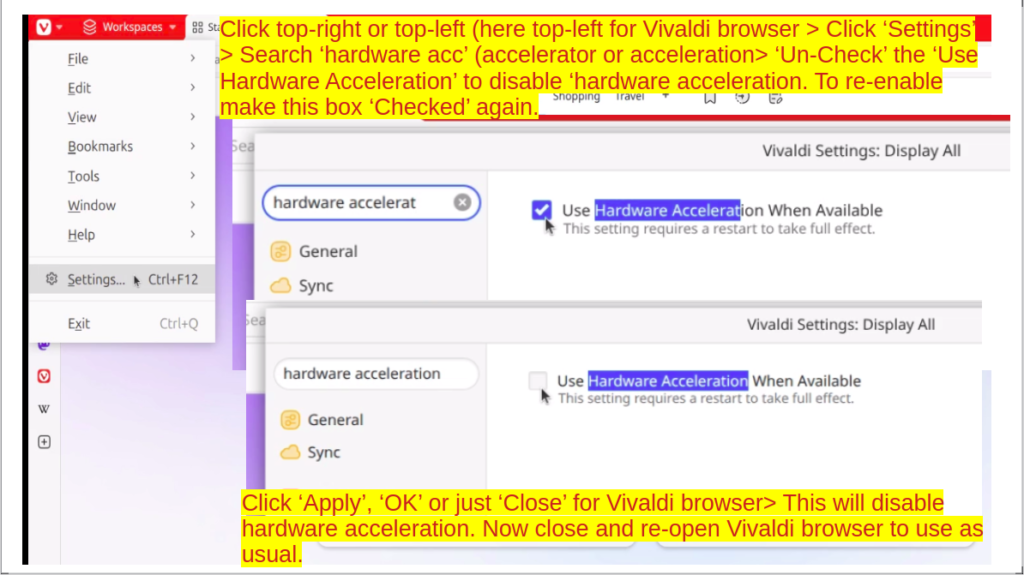
To swith back to Wayland, Logout > Now click on the wheel icon at the bottom right of the screen > click to select ‘Wayland’ > Login, now Ubuntu will run in Wayland session. In general, it is better to use Wayland as it is more efficient, however incase of software/application incompatibility, one can try ‘X11 org’ session during login. - To address browser crashes related to hardware acceleration on your Linux system, consider disabling hardware acceleration individually in each browser. This can prevent crashes caused by GPU-based rendering. This approach ensures stability across all browsers until more efficient system-wide solutions are found or tested. How to disable ‘hardware acceleration’ on browser? In general, open browser > click on top right corner or top left corner to find ‘settings’ > click on ‘settings’ and search ‘hardware’ > click to ‘disable’ or un-check the ‘hardware acceleration’ > save and exit > reopen browser, now it will run WITHOUT ‘hardware acceleration’.
To re-enable ‘hardware acceleration’, open browser > click on top right corner or top left corner to find ‘settings’ > click on ‘settings’ and search ‘hardware’ > click to ‘enable’ or check the ‘hardware acceleration’ > save and exit > reopen browser, now it will run WITH ‘hardware acceleration’.
Solution (Maintenance):
- Update applications e.g. ‘sudo apt update’ and ‘sudo apt upgrade’.
- Update drivers and instead of using bigTech NVIDIA’s driver firmware, consider using open source and other alternative providers.
- Prevent overheating of computer (example in hot and humid climate consider using ice-pack below computer without blocking its fans and vents)
- Increase computer RAM (memory) and swap (memory). Increasing RAM is a hardware solution that involves physically changing the RAM of the computer, so may not be feasible for everyone. Increasing swap is a software or coding solution so is feasible for everyone. Here is the code you can run on ‘ext4’ hard-disk formatted Linux OS such as Ubuntu, LinuxMint, Kubuntu, Manjaro, OpenMandriva, NixOS, Q4OS, Debian, PureOS and others. Typing a sequence of commands in Linux OS Terminal will create 25G swap (transient memory area), change the value to create more swap such as 50G or less such as 10G — here G stands for GB. Prerequisite is that, for creating 25G swap, you need to have atleast 25G + 10G free space in the disk, so that after 25G is used up for swap, 10G free space stays available. I have found that usually, 25G swap is enough for running AI models from Huggingface locally on computer, using GPT4All, JanAI, LMStudio and AnythingLLM, without using or enabling bigTech NVIDIA’s driver GPU — using local AI models using laptop resources is less energy demanding (better for environment) and more secure/private, than using AI models online. If you get error after ‘sudo swapon –show’ and ‘sudo swapoff /swapfile’, it means there is no ‘swapfile’ in your system, so ignore it and continue with next steps. The ‘free -h’ command displays total available memory, namely ‘RAM’ (hardware) and ‘swap’ software.
Here’s the code to type on Linux OS Terminal (Konsole), for ‘ext4’ drive, G stands for GB (gigabyte):
free -h
sudo swapon --show
sudo swapoff /swapfile
sudo fallocate -l 25G /swapfile
sudo chmod 600 /swapfile
sudo mkswap /swapfile
sudo swapon /swapfile
free -h
Here’s the code to type on Linux OS Terminal (Konsole), for ‘btrfs’ drive, G stands for GB (gigabyte):
free -h
sudo swapon --show
sudo swapoff /swapfile
sudo btrfs filesystem mkswapfile --size 25G /swapfile
sudo chmod 600 /swapfile
sudo mkswap /swapfile
sudo swapon /swapfile
free -h
To reclaim the 25G space, just delete the swap file as follows, G stands for GB (gigabyte):
cd /
sudo rm swapfile
References:
Updated to latest version of Libre office and it crashes on opening | Linux Office https://ask.libreoffice.org/t/updated-to-latest-version-of-libre-office-and-it-crashes-on-opening/88047
References: Enable/Disable Hardware Acceleration in Settings | Vivaldi Browser https://forum.vivaldi.net/topic/27011/enable-disable-hardware-acceleration-in-settings
Tutor: Need a #tutor for this #video #tutorial? Contact me at smukher2@protonmail.com or smukher2@mailfence.com.
#linux #software #privacy #security #offline #installation #video #tutorial
Tutor (Future Plans): In the future, content from the ‘fairwissenschaft’ website will be taught by an adaptive tutor called ‘Camelot-Knights-AI’. The name is inspired by King Arthur’s legendary court and castle at Camelot, where unity, equality, and idealized Christian values were upheld among the esteemed knights. To understand the significance of these names, a brief overview of the Arthurian legend is necessary. King Arthur was the mythical king of Britain who ruled during the High Middle Ages. His court and castle, Camelot, served as the center of his kingdom and symbolized his court and the knights’ fellowship. The Round Table at Camelot represented unity and equality among Arthur’s knights, who were renowned for their chivalry, bravery, wisdom, knowledge and heroic deeds. Handpicked by Arthur, these knights embodied wisdom, honor, knowledge, loyalty, and courage. King Arthur also led by example to ensure the knights stayed on the path of righteousness. In the context of ‘fairwissenschaft’ website AI tutor, ‘Camelot-Knights-AI’ will embody the values and knowledge of the ‘fairwissenschaft’ website in an adaptive tutor designed for a better learning experience. This AI agent will not only be knowledgeable but also learn and adapt to each student’s unique needs. To maintain quality and ensure safety, an additional feature will be introduced called ‘Camelot-Arthur-AI’. This guardrail agent will allow parents and mentors to review and remove any content that is inconsistent with the great Christian Western Civilization, which is foundational to all knowledge (arts and sciences), including knowledge presented in ‘fairwissenschaft’ website. By doing so, ‘Camelot-Arthur-AI’ will help course correct ‘Camelot-Knights-AI’ to good values or teachings in keeping with the greatness of Christian Western Civilization, just like how King Arthur did with his Knights. Maintaining this greatness of Christian Western Civilization is critical as it forms the foundation for all ‘ethos’ and ‘logos’, meaning it underpins all knowledge (sciences and arts), including the knowledge presented here on ‘fairwissenschaft’ website. With ‘Camelot-Knights-AI” adaptive learning capabilities combined with review by ‘Camelot-Arthur-AI’, its will be aimed to provide a positive, accurate, and enriching learning experience for all. To put it simply, ‘Camelot-Knights-AI’ will focus on ‘logos’ and ‘Camelot-Arthur-AI’ will focus on ‘ethos’ of knowledge, here ‘fairwisseschaft’ website.