Installing Two Linux OS As Multi-Boot
Continued from ‘Installing Two Linux OS As Dual-Boot’ https://fairwissenschaft.eu/2026/01/installing-two-linuxos-as-dual-boot/
Latest edit: 06-04-2026:
a) Renamed article ‘Installing Seven Linux OS As Multi-Boot – Troubleshooting 1: How to resize disk or partition on which Ubuntu is installed with Terminal even though live Ubuntu installer does not provide this option?’ to ‘Installing Two Linux OS As Multi-Boot’ because Scenario 1 not only demonstrates the lvreduce code, but shows its full application in the context of installation of primary Linux OS, Ubuntu OS and second Linux OS, Parrot OS. Also, changed link from ‘https://fairwissenschaft.eu/2026/04/installing-seven-linux-operating-systems-as-multi-boot-troubleshooting-1-resize-ubuntu-luks-encrypted-disk/’
to ‘https://fairwissenschaft.eu/2026/04/installing-two-linuxos-as-multi-boot‘
Earlier edit: 06-04-2026:
a) added missing ‘gparted’ step in lvreduce code. b) added ‘video_troubleshooting1_scenario_1_part1-1_uefi_and_boot_06-04-26′ with audio fixed Link https://fairwissenschaft.eu/media-large/videos/video_troubleshooting1_scenario_1_part1-1_uefi_and_boot_06-04-26.mp4
Installation: Demonstration 2 – Setup of any target disk, internal or external disk, with Mac, Windows or Linux computer
Introduction:
Ubuntu OS is one of the best Linux OS available, offering compatibility with cutting-edge technology and meeting the demands of both advanced users and beginners. It is available in free desktop and server/cloud versions, as well as a pro version that is free for personal use but paid for organizational use. However, the latest versions of Ubuntu OS such as 24 LTS, do not allow dual boot with other operating systems, Mac OS or Windows OS, when using LUKS encryption (LUKS2 cryptsetup) with LVM (volume management) in the installation process. Additionally, it does not allow installation with another Linux OS, when using LUKS disk encryption. This is likely due to the complexity of LUKS and LVM disk architectures, but as a user, you want the advantages of multi-boot operating systems like Linux OS so that if one OS fails due to cyberattack, you can use the other OS. You also want LUKS encryption to protect your disk and computer not just by your login username but also by a disk passphrase, which so that to login one would need two passwords (disk passphrase and username login password). For multi-boot system, say Ubuntu OS plus one other such as Parrot OS (as shown in scenario 1), each Linux OS disk partition can be protected with different passphrases, and different username login passwords, making it a total of four passwords (disk passphrase for Ubuntu OS, disk passphrase for second Linux OS say Parrot OS, username login password for Ubuntu OS and username login password for second Linux OS say Parrot OS). Currently, the goal is to achieve this multi-boot setup using minimal coding on Terminal because current Ubuntu OS installer 24 LTS, does not allow for multi-boot installation when LUKS and LVM are enabled in the installer.
The current Ubuntu version 24 LTS, does not allow installation with another Linux OS, when LUKS disk encryption is used. The Ubuntu versions upto 22 LTS, and Ubuntu based laterst LinuxMint version 22 LTS, all allow for installation with another Linux OS, when LUKS disk encryption is used by allowing user to create a ‘free space’ along with LUKS encrypted partition in Manual or ‘Something Else’ installer option. For detail about how this is done please refer to LinuxMint installation as primary system [ref 1]. Thus, for users interested in installation of Ubuntu 24 LTS or higher versions, with LUKS disk encryption, their only option is to install it as a solo system on the whole disk, which is not advisable as a multiboot system is more robust to cyberattacks as if one boot fails, another OS can boot in a multiboot system and using Terminal/Commandline tools, namely ‘chroot’, ‘grub-install’, ‘update-grub’ and ‘efibootmgr’, one linux OS in a computer can repair boot issues of another linux OS on the computer. In other words, multiple linux OS in a multiboot system, not only provide alternate boot options but can repair each others boot issues creating a symbiotic ergo sustainable relationship. Ubuntu is an advanced and user friendly linux OS and if only it could be booted with along linux OS, while still being LUKS encrypted it could be used as a primary linux OS in a multiboot system, similar to how LinuxMint is used as a primary linux OS in a multiboot computer [ref 1]. To achieve this goal presently, a code is shared that can be typed on Terminal to shrink LUKS disk or partition where Ubuntu 24 LTS was installed on full disk using ‘Erase’ disk option. This code is developed with help of Ubuntu’s manpages recommendations and solution provided by Michael Kropat on askubuntu.com [ref 2, ref 3]. After shrinking, the free space generated may be used to create a multiboot linux OS computer system where Ubuntu is used as a primary system instead of LinuxMint as discussed before [ref 1].
Protocol
Reducing LVM-LUKS Disk Size: Description Of Code
- Please backup your data on the disk (here /dev/sdc) before using the following protocol as mistakes can potentially result in data loss.
- First, list all block devices on your system with
lsblk. Look for the device name of your target disk. - Open the LUKS container using
sudo cryptsetup luksOpen /dev/sdc3 devluksopen. Replace “/dev/sdc3” with the actual device name of your target disk. - List all logical volumes (LV) on your system with
sudo lvs. Look for the volume group and logical volume names associated with your LUKS container. - List all physical volumes (PV) on your system with
sudo pvs. Look for the PV that is associated with the LV of your LUKS container. - Reduce the size of the LV by 100GB using
sudo lvreduce -r -L -100G ubuntu-vg/ubuntu-lv. Replace “ubuntu-vg” and “ubuntu-lv” with your actual volume group and logical volume names. This reduces size by 100GB for a disk that has atleast 100GB free space i.e. if you boot Ubuntu and find the disk has less than 100GB free space, then ‘lvreduce’ cannot reduce the disk by 100GB to create free space. - List all LV again to confirm the reduction in size.
- Open ‘Gparted’ GUI app, ‘Authenticate’ and select the disk, and partition, then right click to ‘resize’ down to the new size, type ‘LUKS’ encryption password when prompted.
- Close the LUKS container using
sudo cryptsetup luksClose devluksopen. - Exit the terminal.
#Reducing Linux OS installation target LVM-LUKS disk size
lsblk
sudo cryptsetup luksOpen /dev/sdc3 devluksopen
sudo lvs
sudo pvs
sudo lvreduce -r -L -100G ubuntu-vg/ubuntu-lv
sudo lvs
gparted
sudo cryptsetup luksClose devluksopen
exit
Also see below for a scenario where lvreduce code is applied:
Scenario 1: When you might want to reduce LUKS or LUKS-LVM root partition, where Ubuntu OS is installed? (video)
Increasing LVM-LUKS Disk Size: Description Of Code
- Please backup your data on the disk (here /dev/sdc) before using the following protocol as mistakes can potentially result in data loss.
- First, list all block devices on your system with
lsblk -f. Look for the device name of your target disk. - Open a new LUKS container using
sudo cryptsetup luksOpen /dev/sdc3. Replace “/dev/sdc3” with the actual device name of your target disk.devluksopen - Change to the directory
/dev/mapperand list all LVs usingls. Look for the LV associated with your new LUKS container. - List all PVs on your system with
sudo pvs. Look for the PV that is associated with the LV of your new LUKS container. - List all block devices again to confirm the size increase.
- Resize the LV by adding 100GB using
sudo lvresize -l +100%FREE /dev/mapper/ubuntu--vg-ubuntu--lv. Replace “ubuntu–vg” and “ubuntu–lv” with your actual volume group and logical volume names. - Run the
e2fsck -fycommand to check for any errors on the filesystem. - Resize the filesystem using
sudo resize2fs /dev/mapper/ubuntu--vg-ubuntu--lv. - Close the LUKS container using
sudo cryptsetup luksClose. Here if you get message, ‘Disk busy’, just power-off computer and you can remove disk.devluksopen - Exit the terminal.
lsblk -f
sudo cryptsetup luksOpen /dev/sdc3 devluksopen
cd /dev/mapper
ls
sudo lvs
sudo pvs
lsblk -f
sudo cryptsetup resize devluksopen
sudo pvresize /dev/mapper/devluksopen
sudo lvresize -l +100%FREE /dev/mapper/ubuntu--vg-ubuntu--lv
sudo e2fsck -fy /dev/mapper/ubuntu--vg-ubuntu--lv
sudo resize2fs /dev/mapper/ubuntu--vg-ubuntu--lv
sudo cryptsetup luksClose devluksopen
cd
exit
References
ref 1: https://fairwissenschaft.eu/2026/03/installing-seven-linuxos-as-multi-boot/
ref 2: https://manpages.ubuntu.com/manpages/noble/en/man8/lvreduce.8.html
ref 3: https://askubuntu.com/questions/124465/how-do-i-shrink-the-root-logical-volume-lv-on-lvm
Scenario 1: When you might want to reduce LUKS or LUKS-LVM root partition, where Ubuntu OS is installed? (video)
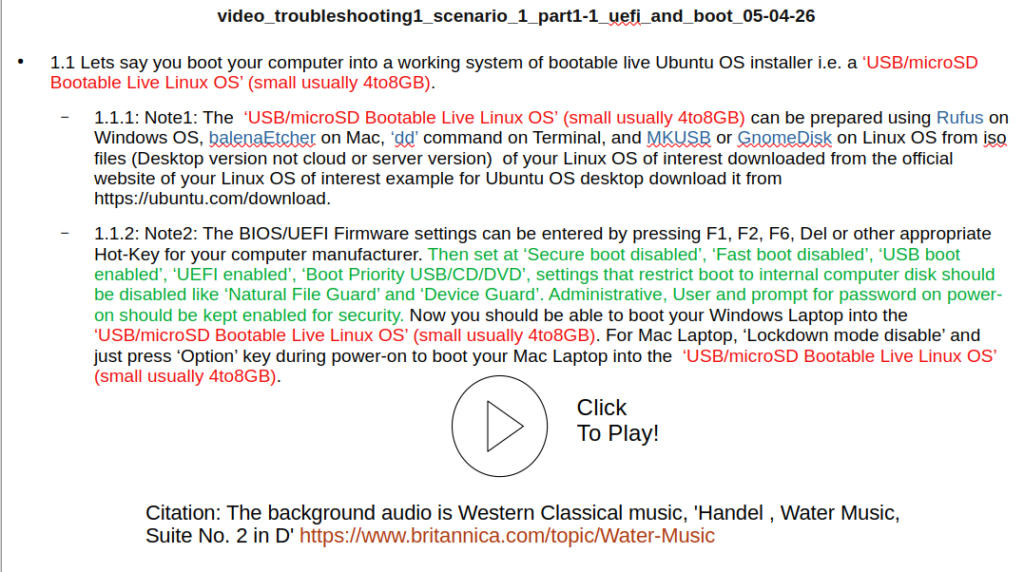
1.1 Lets say you boot your computer into a working system of bootable live Ubuntu OS installer i.e. a ‘USB/microSD Bootable Live Linux OS’ (small usually 4to8GB).
-1.1.1: Note1: The ‘USB/microSD Bootable Live Linux OS’ (small usually 4to8GB) can be prepared using Rufus on Windows OS, balenaEtcher on Mac, ‘dd’ command on Terminal, and MKUSB or GnomeDisk on Linux OS from iso files (Desktop version not cloud or server version) of your Linux OS of interest downloaded from the official website of your Linux OS of interest example for Ubuntu OS desktop download it from https://ubuntu.com/download.
-1.1.2: Note2: The BIOS/UEFI Firmware settings can be entered by pressing F1, F2, F6, Del or other appropriate Hot-Key for your computer manufacturer. Then set at ‘Secure boot disabled’, ‘Fast boot disabled’, ‘USB boot enabled’, ‘UEFI enabled’, ‘Boot Priority USB/CD/DVD’, settings that restrict boot to internal computer disk should be disabled like ‘Natural File Guard’ and ‘Device Guard’. Administrative, User and prompt for password on power-on should be kept enabled for security. Now you should be able to boot your Windows Laptop into the ‘USB/microSD Bootable Live Linux OS’ (small usually 4to8GB). For Mac Laptop, ‘Lockdown mode disable’ and just press ‘Option’ key during power-on to boot your Mac Laptop into the ‘USB/microSD Bootable Live Linux OS’ (small usually 4to8GB).
1.2 Now you decide to install Ubuntu OS on target disk, say a 64GB external disk (or internal computer disk), ‘USB Flash Target’ (say 64GB) or ‘External Disk Target’ (say 60GB). How to do this? Boot into the working system of bootable live Ubuntu OS installer ‘USB/microSD Bootable Live Linux OS’ (small usually 4to8GB) (see Note 1 and Note 2 on how to achieve this), and install Ubuntu OS using ‘Erase’ Disk option of Ubuntu Installer. If your target external disk (or internal disk) is NTFS or FAT or ExFAT or MS-Journal format, then first use the Gnome Disk Utility to reformat the target external drive to Ext4. In this demo specifically, target disk shown is ‘USB Flash Target’ (say 64GB).
1.3 Now, you decide you want to install another Linux OS using Calamares Linux OS installer on your target disk, ‘USB Flash Target’ (say 64GB). For this you first need to shrink the LUKS or LUKS-LVM root partition of Ubuntu OS on the target disk, ‘USB Flash Target’ (say 64GB). Its possible to do this using ‘lvreduce’ provided the target disk is not all full i.e. when you boot into Ubuntu OS target disk, ‘USB Flash Target’ (say 64GB) you see free space on the disk, and this free space is the limit to which you can reduce the size by. How to do this? Boot into the working system of bootable live Ubuntu OS installer ‘USB/microSD Bootable Live Linux OS’ (small usually 4to8GB) (see Note 1 and Note 2 on how to achieve this), and type the ‘lvreduce’ code sequence to reduce size of target disk ‘USB Flash Target’ (say 64GB) by 20GB. Reboot computer and you will find that the size of the target disk, ‘USB Flash Target’ (say 64GB) has been reduced.
1.4 Now, you can proceed to install another Linux OS using Calamares Linux OS installer ‘USB/microSD Bootable Live Linux OS’ (small usually 4to8GB) on your target disk, ‘USB Flash Target’ (say 64GB). How to do this? Boot into the working system of bootable live linux OS OpenMandriva, Manjaro, Parrot, Q4OS, Kubuntu, or Debian Gnome Live Calamares installer ‘USB/microSD Bootable Live Linux OS’ (small usually 4to8GB) (see Note 1 and Note 2 on how to achieve this). In Terminal use ‘nano /etc/calamares/modules/bootloader.conf’ to make ‘installEFIFallback: false’. Now start Calamares Installer icon and use ‘Replace’ option to install the second linux OS in the ‘free space’ created by ‘lvreduce’ on the target disk. In this demo specifically, target disk shown is ‘USB Flash Target’ (say 64GB).
Citation: The background audio is Western Classical music, ‘Handel , Water Music, Suite No. 2 in D’ https://www.britannica.com/topic/Water-Music